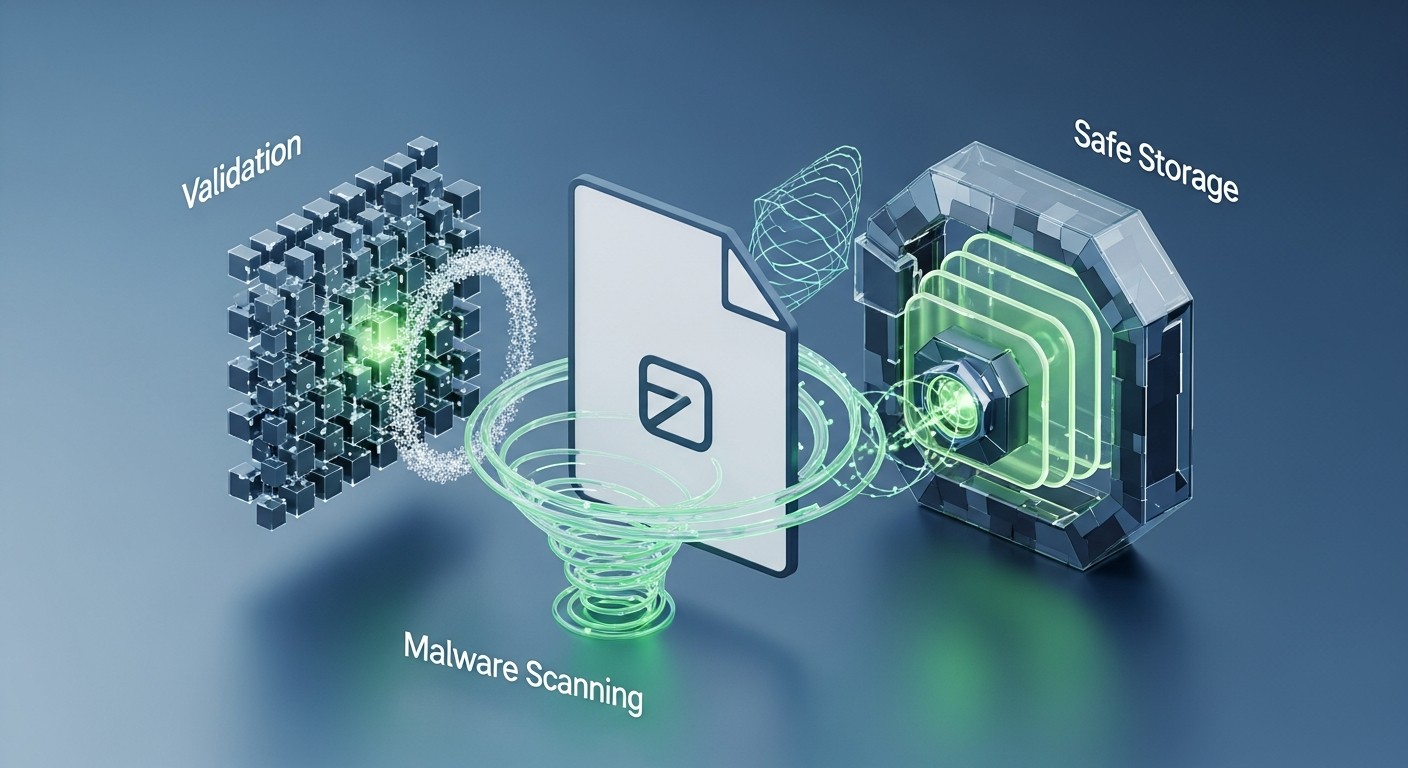
Securing File Uploads in Web Applications: Top 10 Practices for Validation, Malware Scanning, and Safe Storage
File uploads are one of the most dangerous features you can expose in a web application. A single poorly validated upload endpoint can turn into remote code execution, data exfiltration, or a ransomware entry point.
The good news: with some disciplined design and a few defensive layers, you can make file uploads significantly safer.
This guide walks through 10 practical best practices for securing file uploads, with examples, patterns, and gotchas that bite developers in real systems.
High-Level Architecture: How a Safe Upload Flow Looks
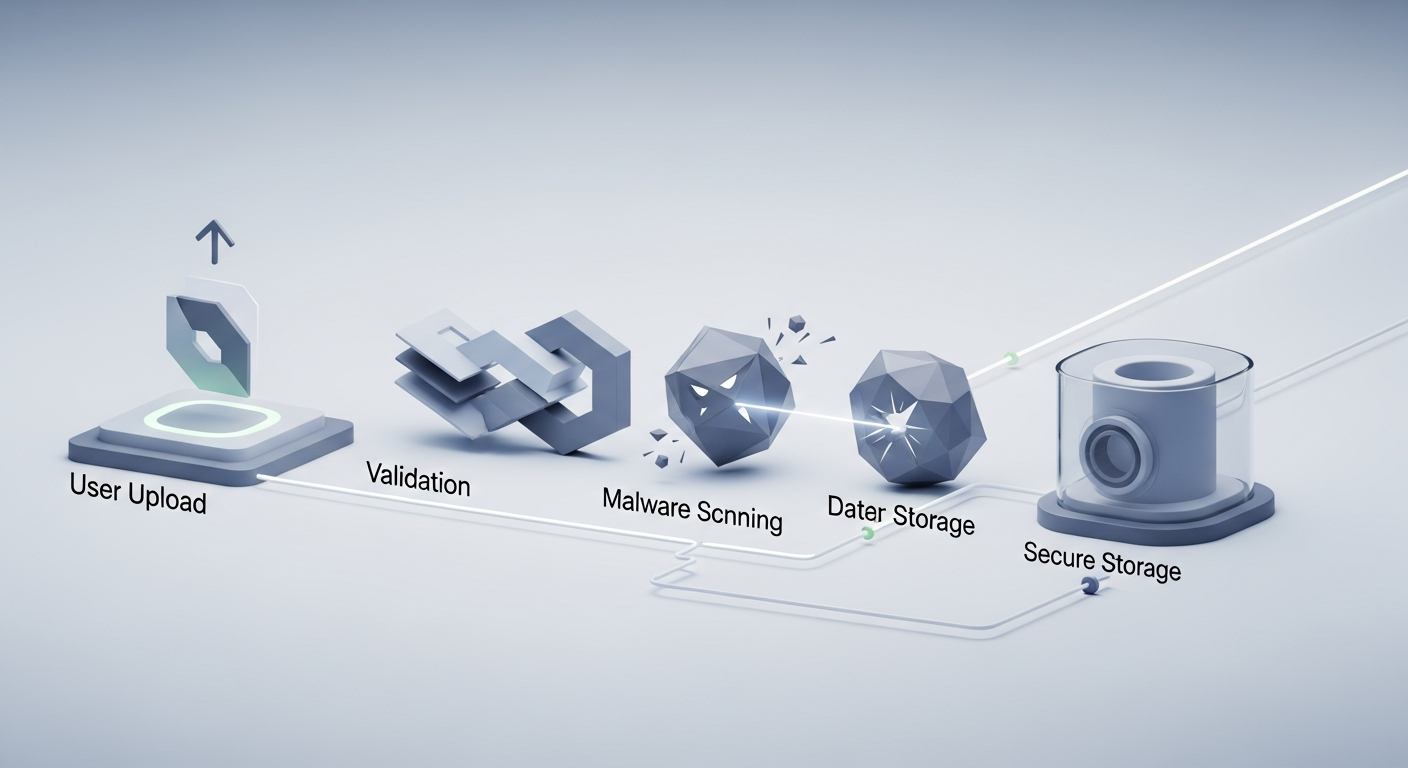
Before we dive into the top 10, here’s a typical secure upload pipeline:
graph TD
    A[Client Upload] --> B[Ingress Endpoint (HTTPS)]
    B --> C[Initial Validation<br/>size, type, extension]
    C -->|Fail| X[Reject & Log]
    C -->|Pass| D[Store Temporarily<br/>outside web root]
    D --> E[Malware Scan]
    E -->|Malicious| X[Delete & Log Alert]
    E -->|Clean| F[Generate Safe Metadata<br/>rename, IDs, hashes]
    F --> G[Store in Final Location<br/>(object storage / blob)]
    G --> H[Issue Access Token / URL<br/>for controlled access]
We’ll map each of these steps to concrete practices.
Top 10 Best Practices for Securing File Uploads
This is the mindset shift: every uploaded file is hostile until proven otherwise.
Key principles:
- Never trust:
- File names
- MIME types from the client (
Content-Type header)
- File extensions
- Any metadata embedded in the file (EXIF, PDF metadata, etc.)
- Validate, sanitize, and re-check everything on the server.
- Assume an attacker can:
- Rename
.php to .jpg
- Forge
Content-Type: image/png
- Embed HTML or JavaScript in seemingly harmless file formats (e.g., SVGs, PDFs).
Example: Node/Express secure upload mindset
// Express pseudo-middleware
app.post('/upload', upload.single('file'), async (req, res) => {
  const file = req.file;

  // Treat as untrusted
  if (!file) {
    return res.status(400).json({ error: 'No file uploaded' });
  }

  // we will validate type, size, and scan before accepting
  try {
    await validateAndScan(file);
    res.status(200).json({ status: 'ok' });
  } catch (err) {
    // Log and reject
    console.error('Upload rejected:', err.message);
    res.status(400).json({ error: 'Invalid or unsafe file' });
  }
});
2. Enforce Strict File Type and Content Validation
File type validation is not just checking the extension. Real validation has multiple layers:
| Layer |
Example |
Notes |
| Extension allowlist |
.jpg, .png |
Quick, but easily bypassed |
| MIME type check |
image/jpeg |
Never trust client; override using server-side detection |
| Magic bytes check |
FF D8 (JPEG) |
Inspect the actual file header signature |
| Library parsing |
Image/PDF parser |
Try to actually parse; if it fails, reject the file |
Example: Basic magic-bytes check in Node.js
import fs from 'fs/promises';

const JPEG_MAGIC = Buffer.from([0xFF, 0xD8, 0xFF]);
const PNG_MAGIC  = Buffer.from([0x89, 0x50, 0x4E, 0x47]);

async function detectFileType(path) {
  const fd = await fs.open(path, 'r');
  const buffer = Buffer.alloc(4);
  await fd.read(buffer, 0, 4, 0);
  await fd.close();

  if (buffer.slice(0, 3).equals(JPEG_MAGIC)) return 'image/jpeg';
  if (buffer.equals(PNG_MAGIC)) return 'image/png';
  return 'unknown';
}
You can combine file-type detection with dedicated validation tools. For example, if you want an extra sanity check over what your API is receiving, a security-focused validator like the File Security Checker can help you analyze and verify file characteristics (type, metadata, potential risks) during development or troubleshooting.
Best practices:
- Maintain a tight allowlist of allowed types (e.g., only images, or only PDFs).
- Validate both by extension and content (magic bytes / libraries).
- Reject unknown or ambiguous types rather than trying to be “helpful.”
3. Limit File Size and Enforce Quotas
Oversized uploads can cause:
- Denial of Service (DoS) by exhausting memory or disk.
- Extremely long scan times.
- Backend timeouts and resource contention.
Actions:
- Set client-side limits (for UX) but enforce server-side:
- Reject anything above your maximum allowed size.
- Use streaming where possible to avoid loading entire files into memory.
Example: Express with Multer (size limit)
import multer from 'multer';

const upload = multer({
  storage: multer.memoryStorage(),
  limits: {
    fileSize: 5 * 1024 * 1024 // 5 MB
  }
});

app.post('/upload', upload.single('file'), (req, res) => {
  // If fileSize limit exceeded, Multer throws an error before this
  res.json({ ok: true });
});
Per-user / per-tenant quotas:
- Track total storage used per user.
- Rate-limit upload operations to prevent abuse.
- When using object storage (S3/GCS/Azure Blob), integrate with billing and quotas.
4. Store Files Outside the Web Root and Use Safe Names
Never store uploaded files directly in a directory that is web-accessible and executable (e.g., public/uploads served by your web server).
Storage rules:
- Store files:
- In object storage (S3, GCS, Azure Blob), or
- On disk outside your web root (e.g.,
/var/app-data/uploads).
- Generate random, opaque filenames:
- Use UUIDs or cryptographically secure random strings.
- Remove any path components in user-provided names.
Example: secure file naming (Node.js)
import crypto from 'crypto';
import path from 'path';

function generateSafeFileName(originalName) {
  const ext = path.extname(originalName).toLowerCase();
  const id = crypto.randomBytes(16).toString('hex');
  return `${id}${ext}`;
}
Why this matters:
- Prevents directory traversal attacks like
../../../../etc/passwd.
- Avoids file overwrites.
- Keeps information about user file names private.
5. Run Antivirus/Malware Scanning on Uploads
Even if you only accept PDFs and images, attackers can embed malware into formats that look benign. Scanning uploads is a critical part of the pipeline.
Approach:
- Use CLI-based scanners (e.g., ClamAV) or cloud AV APIs.
- Scan files while they’re in a quarantine area before moving them to final storage.
- Treat scanner failures conservatively (e.g., consider “scan failed” as “not safe”).
Example: simple ClamAV integration (Node.js)
import { spawn } from 'child_process';

function scanFileWithClamAV(filePath) {
  return new Promise((resolve, reject) => {
    const clamscan = spawn('clamscan', ['--no-summary', filePath]);

    let output = '';
    clamscan.stdout.on('data', (data) => { output += data.toString(); });

    clamscan.on('close', (code) => {
      if (code === 0) {
        // No virus found
        return resolve({ clean: true });
      }
      if (code === 1) {
        // Virus found
        return resolve({ clean: false, output });
      }
      // ClamAV error
      return reject(new Error(`ClamAV error: ${output}`));
    });
  });
}
When debugging or analyzing specific files outside your stack, you can combine AV scanning with validation tools like the File Security Checker to inspect metadata, headers, and content patterns that might indicate hidden or malformed content.
Best practices:
- Scan before processing (e.g., before resizing images, parsing PDFs).
- Scan before making files available for download.
- Log and alert when malware is detected.
Uploaded files often contain more than just the content you see:
- Images can include EXIF data: GPS coordinates, device IDs, timestamps.
- PDFs can include JavaScript, embedded files, and active content.
- Office documents can contain macros.
A good defensive strategy:
- Transform uploads into a safer format (when possible).
- Strip metadata not needed for your application.
Examples:
- Convert uploaded images to a safe subset (e.g., re-encode to JPEG/PNG).
- Use a PDF sanitizer to remove scripts or embedded files.
- For images, strip EXIF:
# Using exiftool on the server as part of a processing pipeline
exiftool -all= -overwrite_original uploaded-image.jpg
Security benefit:
- Removes hidden data attackers might abuse.
- Reduces risk of stored XSS via embedded scripts (SVG, PDF, etc.).
- Protects user privacy (location, device info).
7. Use Secure Access Patterns (No Direct Execution or Embedding)
Even after safe storage and scanning, how you serve files matters.
Avoid:
- Serving untrusted files from the same domain as your main app without protections.
- Letting users upload HTML, SVG, or JS that the browser might execute.
- Inline display of user-uploaded HTML fragments.
Safer patterns:
-
Separate domain / subdomain for uploads
- e.g., main app at app.example.com, uploads at files.example-cdn.com.
- That way, if something slips through, it’s isolated by origin policies.
-
Set security headers on file-serving endpoints:
Content-Security-Policy: default-src 'none'; img-src 'self'; media-src 'self'
X-Content-Type-Options: nosniff
X-Frame-Options: DENY
- Use Content-Disposition for downloads:
Content-Disposition: attachment; filename="user-file.pdf"
Content-Type: application/pdf
This encourages the browser to treat the file as a download, not execute or render it inline.
Example: Express route for serving uploads
app.get('/files/:id', async (req, res) => {
  const fileMeta = await getFileMetadata(req.params.id); // includes type, name, path
  if (!fileMeta) return res.status(404).end();

  res.setHeader('Content-Type', fileMeta.mimeType);
  res.setHeader('Content-Disposition', `attachment; filename="${fileMeta.safeName}"`);
  res.setHeader('X-Content-Type-Options', 'nosniff');

  const stream = fs.createReadStream(fileMeta.path);
  stream.pipe(res);
});
8. Validate Authorization and Ownership for Access
File uploads are often coupled with permission problems. It’s not enough to store a file safely; you must also ensure only authorized users can access it.
Common issues:
- “IDOR” (Insecure Direct Object References):
Users can access others’ files by guessing IDs or URLs.
- Public URLs that never expire.
Mitigations:
- Use opaque IDs or random tokens for file references, not sequential IDs.
- Enforce ownership on every read/write operation.
- For public/shared links, use:
- Signed URLs with an expiry time.
- Fine-grained access scopes.
Example: Signed URL pattern (pseudo-code)
import hmac, hashlib, time, base64

SECRET_KEY = b'super-secret-key'

def generate_signed_url(file_id, expires_in_seconds=3600):
    expires_at = int(time.time()) + expires_in_seconds
    payload = f"{file_id}:{expires_at}"
    sig = hmac.new(SECRET_KEY, payload.encode(), hashlib.sha256).hexdigest()
    token = base64.urlsafe_b64encode(f"{payload}:{sig}".encode()).decode()
    return f"https://files.example.com/download?token={token}"
On the download side:
- Decode token
- Validate signature and expiry
- Check file ownership / permissions
9. Log, Monitor, and Rate-Limit Upload Activity
Security is not just about blocking attacks, but also detecting and understanding them.
What to log:
- Upload attempts (successful and failed).
- File metadata: type, size, user ID, IP, timestamp.
- Malware scanner results.
- Access pattern anomalies (e.g., lots of downloads of one file).
Why this helps:
- Detect brute-force attempts, malicious file types, or abuse.
- Forensics if an incident happens.
- Fine-tune your allowlists and rate limits.
Rate limiting:
- Per IP, per user:
- Uploads per minute/hour/day.
- Total upload size per window.
- Use built-in rate-limiting libraries (e.g.,
express-rate-limit in Node).
import rateLimit from 'express-rate-limit';

const uploadLimiter = rateLimit({
  windowMs: 15 * 60 * 1000, // 15 minutes
  max: 30, // max 30 uploads per window
  standardHeaders: true,
  legacyHeaders: false
});

app.post('/upload', uploadLimiter, upload.single('file'), handleUpload);
Periodic audits of uploaded files, aided by tools like the File Security Checker, can also reveal patterns like suspicious MIME types, odd metadata, or malformed files that slipped through initial defenses.
10. Defense in Depth: Multiple Layers, Not a Single Check
No single technique—file type validation, AV scanning, or size limiting—will catch everything. You want layers so that if one control fails, others still protect you.
Here’s how these layers fit together:
| Layer |
Purpose |
Example |
| Transport (HTTPS) |
Protects data in transit |
https:// boundary, TLS termination |
| Initial validation |
Filter obvious bad input early |
Size, extension, basic type checks |
| Deep file validation |
Verify real content |
Magic bytes, parsing libraries, format constraints |
| Malware scanning |
Detect known malicious patterns |
AV scanning, sandboxing |
| Safe storage |
Prevent direct execution |
Store outside web root / in object storage |
| Transformation/sanitizing |
Remove risk and sensitive metadata |
Re-encode images, sanitize PDFs, strip EXIF |
| Access controls |
Control who can read/download files |
AuthZ checks, signed URLs |
| Monitoring & logging |
Detect abuse and failures |
Logs, alerts, rate limiting |
Don’t treat these as optional “nice-to-haves”; treat them as cumulative protections.
Putting It All Together: A Minimal but Safer Upload Pipeline
Here’s a simplified end-to-end example in Node.js showing how these practices connect:
import express from 'express';
import multer from 'multer';
import crypto from 'crypto';
import fs from 'fs/promises';
import path from 'path';

const app = express();
const uploadDir = '/var/app-data/uploads';

// Configure Multer (memory storage + size limit)
const upload = multer({
  storage: multer.memoryStorage(),
  limits: { fileSize: 5 * 1024 * 1024 } // 5 MB
});

function generateSafeFileName(originalName) {
  const ext = path.extname(originalName).toLowerCase();
  const id = crypto.randomBytes(16).toString('hex');
  return `${id}${ext}`;
}

async function basicImageValidation(buffer) {
  // Very simple header check for illustration only
  const header = buffer.subarray(0, 4).toString('hex');
  const isJpeg = header.startsWith('ffd8ff');
  const isPng  = header === '89504e47';

  if (!isJpeg && !isPng) {
    throw new Error('Unsupported file type');
  }
}

app.post('/upload', upload.single('file'), async (req, res) => {
  const userId = req.user?.id || 'anonymous'; // from your auth system

  if (!req.file) {
    return res.status(400).json({ error: 'No file uploaded' });
  }

  try {
    // 1. Validate content type
    await basicImageValidation(req.file.buffer);

    // 2. (Optional) AV scan: write to temp file and scan
    // await scanWithAv(req.file.buffer);

    // 3. Generate safe file name and write to disk outside web root
    const safeName = generateSafeFileName(req.file.originalname);
    const fullPath = path.join(uploadDir, safeName);
    await fs.writeFile(fullPath, req.file.buffer);

    // 4. Save metadata in DB (simulated here)
    const fileMeta = {
      id: safeName,
      owner: userId,
      size: req.file.size,
      mimeType: req.file.mimetype,
      path: fullPath
    };

    // 5. Respond with file ID (not path)
    res.status(201).json({
      id: fileMeta.id,
      size: fileMeta.size
    });
  } catch (err) {
    console.error('Upload error:', err.message);
    return res.status(400).json({ error: 'Invalid or unsafe file' });
  }
});
This isn’t production-ready (no AV, no DB, no auth), but it illustrates:
- Size limits
- Content validation
- Safe naming
- Storage outside web root
- Minimal metadata exposure
Conclusion: Make File Uploads Boring (and Safe)
File uploads should be boring from a security perspective. If they’re exciting, it’s usually for the wrong reasons.
To recap the most important points:
- Assume all uploads are hostile and validate everything server-side.
- Enforce strict type, size, and content checks with a tight allowlist.
- Scan for malware and quarantine files until they pass.
- Store files safely outside the web root using opaque, random names.
- Sanitize and transform files to remove active content and metadata.
- Serve files with secure headers and ideally from a separate origin.
- Enforce authorization and ownership on both upload and download.
- Log, monitor, and rate-limit to catch abuse and refine defenses.
- Use tools and validators (like the File Security Checker) to understand and validate file characteristics when designing and testing your pipeline.
- Layer these controls—don’t rely on any single defense.
If you treat file uploads as a security-critical feature from day one, you’ll avoid a whole class of vulnerabilities that routinely hit otherwise well-designed applications.