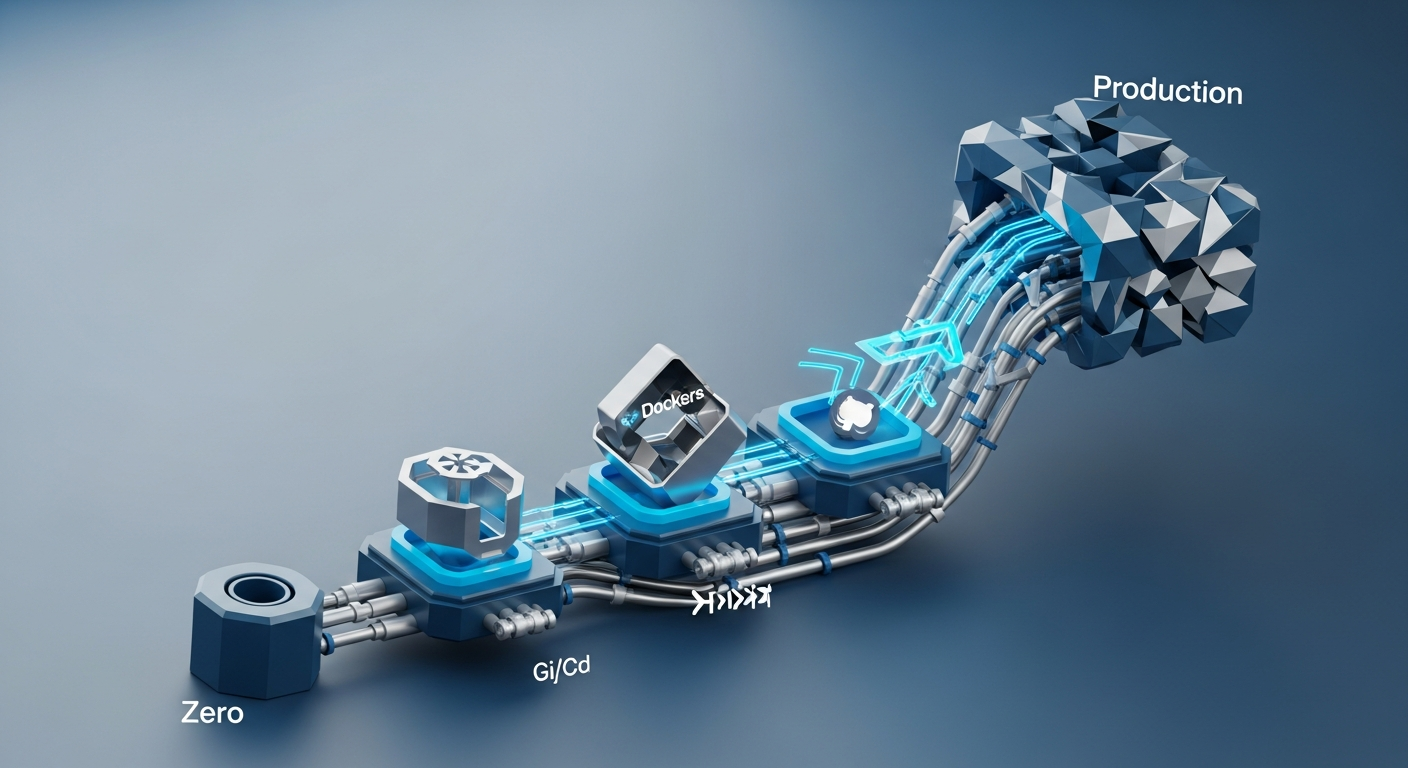
From Zero to Production: A Practical CI/CD Pipeline Setup with GitHub Actions and Docker
Continuous Integration and Continuous Delivery (CI/CD) used to be something only big teams worried about. Today, even solo developers can (and should) automate their builds, tests, and deployments. It saves time, reduces errors, and gives you confidence every time you push code.
In this tutorial, we’ll build a practical CI/CD pipeline from scratch using:
- GitHub Actions for CI/CD automation
- Docker for consistent builds and deployments
We’ll go step by step, starting from a simple app and ending with a production-ready pipeline that:
- Builds and tests your app on every push
- Builds a Docker image
- Pushes the image to a container registry
- Deploys the container to a server (or at least gets you to that point)
What We’re Building
We’ll create:
- A small Node.js API (for concreteness)
- A
Dockerfile and docker-compose.yml
- GitHub Actions workflows for:
- CI (build & test on push/PR)
- CD (build & push image on tag, then deploy)
You can adapt the same concepts to Python, Go, Java, etc.—the ideas are the same.
High-Level CI/CD Flow
graph TD
  A[Developer pushes code] --> B[GitHub Actions - CI Workflow]
  B --> C{Run tests}
  C -->|Fail| D[Fail status<br/>No deploy]
  C -->|Pass| E[Build Docker image]
  E --> F[Push image to registry]
  F --> G[GitHub Actions - CD Workflow<br/>(on tag/release)]
  G --> H[Deploy container<br/>to production]

Step 1: Create a Simple App to Deploy
We’ll use a basic Node.js Express API as an example.
Project Structure
my-app/
  src/
    index.js
  package.json
  package-lock.json
  Dockerfile
  docker-compose.yml
  .github/
    workflows/
Minimal Node.js API
// src/index.js
const express = require('express');
const app = express();

const PORT = process.env.PORT || 3000;

app.get('/health', (req, res) => {
  res.json({ status: 'ok', timestamp: new Date().toISOString() });
});

app.get('/', (req, res) => {
  res.json({ message: 'Hello from CI/CD with GitHub Actions and Docker!' });
});

app.listen(PORT, () => {
  console.log(`Server listening on port ${PORT}`);
});

module.exports = app; // export for tests
package.json
{
  "name": "ci-cd-demo",
  "version": "1.0.0",
  "main": "src/index.js",
  "scripts": {
    "start": "node src/index.js",
    "test": "node test.js"
  },
  "dependencies": {
    "express": "^4.19.0"
  },
  "devDependencies": {}
}
For simplicity, we’ll create a trivial “test”:
// test.js
const app = require('./src/index');

console.log('Running dummy tests...');

// Basic sanity test
if (!app) {
  console.error('App did not export correctly');
  process.exit(1);
}

console.log('All tests passed!');
You’d normally use a real test framework like Jest, Mocha, etc., but the pipeline won’t care.
Step 2: Dockerize the Application
Docker gives you a reproducible environment for both CI and production.
Dockerfile
# Use an official Node.js runtime as a parent image
FROM node:20-alpine

# Set working directory
WORKDIR /usr/src/app

# Copy package.json first to leverage Docker layer caching
COPY package*.json ./

# Install dependencies (no dev deps in production)
RUN npm ci --omit=dev

# Copy the rest of the source code
COPY . .

# Expose the port the app runs on
EXPOSE 3000

# Set NODE_ENV
ENV NODE_ENV=production

# CMD to run the app
CMD ["npm", "start"]
Optional: docker-compose.yml for Local Dev
version: "3.9"

services:
  app:
    build: .
    ports:
      - "3000:3000"
    environment:
      - NODE_ENV=development
Test it locally:
docker build -t ci-cd-demo .
docker run -p 3000:3000 ci-cd-demo
# Visit http://localhost:3000/health
Step 3: CI Basics with GitHub Actions
Create .github/workflows/ci.yml.
The CI job should:
- Run on each push & pull request
- Use Node.js to run tests
- Optionally build the Docker image
Basic CI Workflow
# .github/workflows/ci.yml
name: CI

on:
  push:
    branches: [ main ]
  pull_request:
    branches: [ main ]

jobs:
  test:
    runs-on: ubuntu-latest

    steps:
      - name: Checkout repository
        uses: actions/checkout@v4

      - name: Set up Node.js
        uses: actions/setup-node@v4
        with:
          node-version: '20'
          cache: 'npm'

      - name: Install dependencies
        run: npm ci

      - name: Run tests
        run: npm test

      - name: Build Docker image (sanity check)
        run: docker build -t ci-cd-demo:test .
This gives you immediate feedback whenever you push or open a PR.
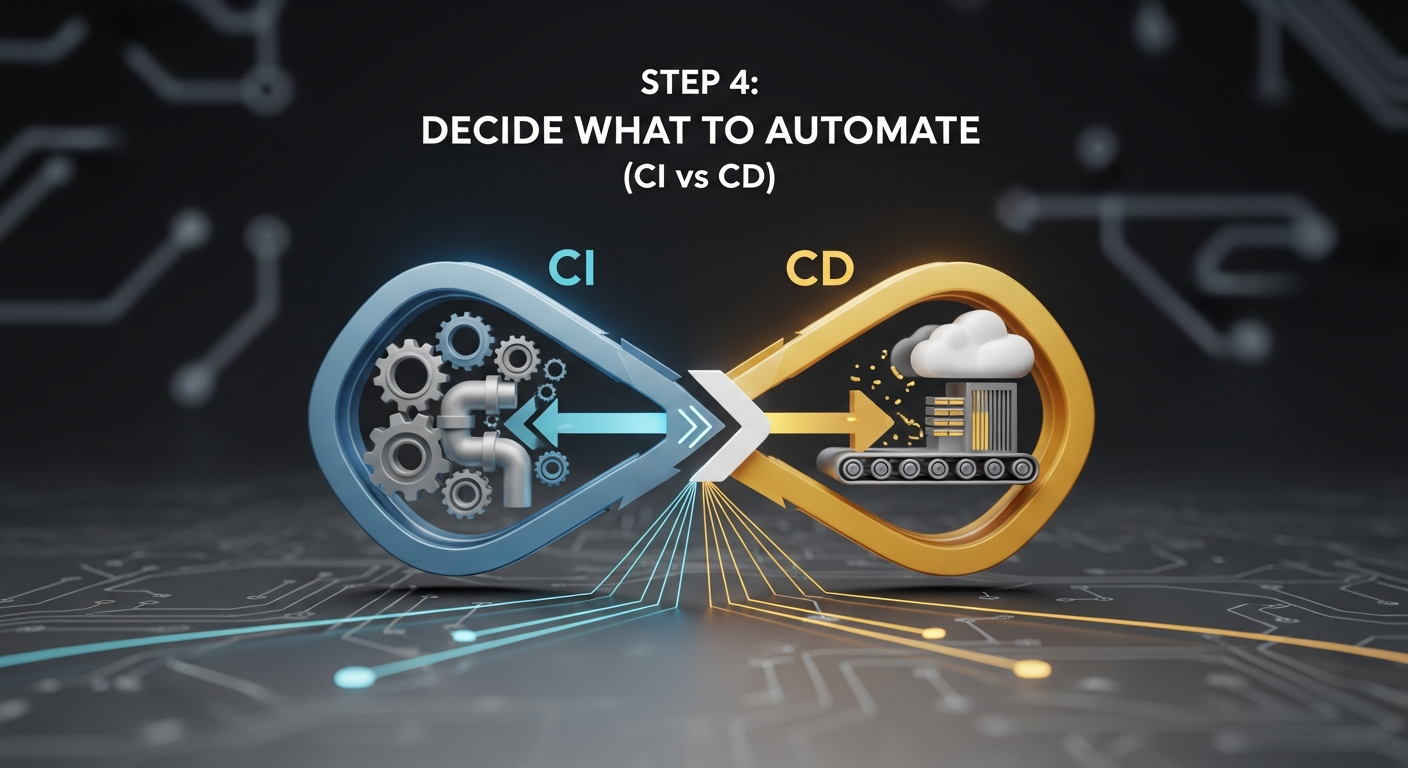
Step 4: Decide What to Automate (CI vs CD)
You don’t want to deploy on every commit to a feature branch. A common pattern:
- CI: On every push and PR to
main
- Run tests
- Optionally build image (but don’t push)
- CD: On tag or release
- Build Docker image
- Push to registry
- Deploy to production
Typical Trigger Strategy
| Pipeline |
Trigger |
Purpose |
| CI |
push, pull_request to main |
Fast feedback, catch regressions |
| CD |
push tags like v* |
Controlled releases & deployments |
Step 5: Set Up a Container Registry
You can use any Docker-compatible registry (Docker Hub, GitHub Container Registry, private registries, etc.).
For illustration, we’ll assume a generic Docker registry and environment variables like:
REGISTRY_URL (e.g., ghcr.io or docker.io)REGISTRY_USERNAMEREGISTRY_PASSWORDIMAGE_NAME (e.g., username/ci-cd-demo)
Add these as Repository Secrets in GitHub:
- Go to your repo → Settings → Secrets and variables → Actions
- Add:
- REGISTRY_URL
- REGISTRY_USERNAME
- REGISTRY_PASSWORD
- IMAGE_NAME
Step 6: Build & Push Docker Images in GitHub Actions
Create .github/workflows/cd.yml for the CD pipeline.
We’ll trigger it when a tag like v1.0.0 is pushed.
CD Workflow: Build & Push Image
# .github/workflows/cd.yml
name: CD

on:
  push:
    tags:
      - 'v*'   # v1.0.0, v2.1.3, etc.

jobs:
  build-and-push:
    runs-on: ubuntu-latest

    env:
      REGISTRY_URL: ${{ secrets.REGISTRY_URL }}
      IMAGE_NAME: ${{ secrets.IMAGE_NAME }}

    steps:
      - name: Checkout repository
        uses: actions/checkout@v4

      - name: Log in to container registry
        run: |
          echo "${{ secrets.REGISTRY_PASSWORD }}" | \
            docker login ${{ env.REGISTRY_URL }} \
              -u "${{ secrets.REGISTRY_USERNAME }}" \
              --password-stdin

      - name: Extract tag version
        id: vars
        run: |
          # refs/tags/v1.0.0 -> v1.0.0
          TAG="${GITHUB_REF#refs/tags/}"
          echo "tag=$TAG" >> "$GITHUB_OUTPUT"

      - name: Build Docker image
        run: |
          docker build \
            -t "${{ env.REGISTRY_URL }}/${{ env.IMAGE_NAME }}:${{ steps.vars.outputs.tag }}" \
            -t "${{ env.REGISTRY_URL }}/${{ env.IMAGE_NAME }}:latest" \
            .

      - name: Push Docker image (version tag)
        run: |
          docker push "${{ env.REGISTRY_URL }}/${{ env.IMAGE_NAME }}:${{ steps.vars.outputs.tag }}"

      - name: Push Docker image (latest)
        run: |
          docker push "${{ env.REGISTRY_URL }}/${{ env.IMAGE_NAME }}:latest"
Now, when you create a tag and push it:
git tag v1.0.0
git push origin v1.0.0
GitHub Actions will build and push your Docker images.
Step 7: Deploying the Container
Deployment depends heavily on where you’re hosting:
- A VM you control (e.g., VPS)
- Managed container platform (e.g., ECS, GKE, etc.)
- Kubernetes cluster
- PaaS that supports Docker images
Let’s walk through a simple VM-based deployment using SSH. This is common for small projects.
Assumptions
- You have a server with Docker installed
- You can SSH as
deploy user
- On the server, you’ll:
- Pull image from registry
- Stop existing container
- Start new container
Store these as GitHub secrets:
DEPLOY_HOST (e.g., example.com)DEPLOY_USER (e.g., deploy)DEPLOY_SSH_KEY (private key with access; use a deploy key)DEPLOY_APP_PORT (optional, e.g., 80 or 3000)
Server-side Deploy Script (Optional but Recommended)
On your server, create a script like /home/deploy/deploy-ci-cd-demo.sh:
#!/usr/bin/env bash
set -euo pipefail

IMAGE="$1" # e.g., registry.com/user/app:tag

echo "Pulling image: $IMAGE"
docker pull "$IMAGE"

# Stop and remove existing container if running
if docker ps --format '{{.Names}}' | grep -q '^ci-cd-demo$'; then
  echo "Stopping existing container..."
  docker stop ci-cd-demo
  docker rm ci-cd-demo
fi

echo "Starting new container..."
docker run -d \
  --name ci-cd-demo \
  -p 80:3000 \
  -e NODE_ENV=production \
  "$IMAGE"

echo "Deployment complete."
Make it executable:
chmod +x /home/deploy/deploy-ci-cd-demo.sh
Extend CD Workflow to Deploy
Add a deployment job that runs after build-and-push.
# .github/workflows/cd.yml (append to previous content)

  deploy:
    needs: build-and-push
    runs-on: ubuntu-latest

    env:
      REGISTRY_URL: ${{ secrets.REGISTRY_URL }}
      IMAGE_NAME: ${{ secrets.IMAGE_NAME }}

    steps:
      - name: Prepare image tag
        id: vars
        run: |
          TAG="${GITHUB_REF#refs/tags/}"
          echo "tag=$TAG" >> "$GITHUB_OUTPUT"

      - name: Install SSH client
        run: sudo apt-get update && sudo apt-get install -y openssh-client

      - name: Add SSH key
        run: |
          mkdir -p ~/.ssh
          echo "${{ secrets.DEPLOY_SSH_KEY }}" > ~/.ssh/id_rsa
          chmod 600 ~/.ssh/id_rsa
          # Avoid host key prompts; for production, manage known_hosts properly
          echo "StrictHostKeyChecking no" >> ~/.ssh/config

      - name: Deploy to server
        run: |
          IMAGE="${{ env.REGISTRY_URL }}/${{ env.IMAGE_NAME }}:${{ steps.vars.outputs.tag }}"
          ssh -i ~/.ssh/id_rsa \
            ${{ secrets.DEPLOY_USER }}@${{ secrets.DEPLOY_HOST }} \
            "/home/${{ secrets.DEPLOY_USER }}/deploy-ci-cd-demo.sh $IMAGE"
Now, a tagged release:
- Builds & pushes images
- Deploys to your server automatically
Step 8: Environment Separation (Dev, Staging, Prod)
For more mature setups, you’ll want separate environments.
Typical pattern:
- dev: deployed on every push to a feature branch or
develop
- staging: deployed on push to
main
- prod: deployed on tags (
v*)
You can parameterize your jobs using environments in GitHub:
# Example: different jobs for staging and prod
on:
  push:
    branches: [ main ]
    tags:
      - 'v*'

jobs:
  deploy-staging:
    if: startsWith(github.ref, 'refs/heads/main')
    environment: staging
    # steps...

  deploy-prod:
    if: startsWith(github.ref, 'refs/tags/v')
    environment: production
    # steps...
In GitHub, you can configure environment-level secrets and protections (e.g., manual approval for production).
Step 9: Best Practices & Hardening Your Pipeline
Once things work end-to-end, tighten the screws.
1. Cache Dependencies
For Node.js, actions/setup-node with cache: 'npm' already helps. For Docker builds, use multi-stage builds and keep package.json copy above other files for better cache reuse.
# (Already done: copy package*.json before the rest)
COPY package*.json ./
RUN npm ci --omit=dev
COPY . .
2. Fail Fast
Make sure each step fails the build appropriately:
- Use
set -e or set -euo pipefail in shell scripts
- Avoid
|| true unless you’re very intentional
3. Minimal Permissions
By default, GitHub Actions can write to the repo. Reduce permissions:
permissions:
  contents: read
  packages: write
Add at the job or workflow level to limit what the workflow can do.
4. Protect Main & Tag Creation
Enable branch protections on main:
- Require PR reviews
- Require status checks (CI) to pass before merging
Optionally, restrict who can create tags that match v* to control production deployments.
5. Observability
After deployment, you’ll want to know:
- Is the container healthy?
- Are errors spiking?
Add basic health checks:
# Simple post-deploy check in your deploy script
curl -f http://localhost/health || {
  echo "Health check failed!"
  exit 1
}
You can also have GitHub Actions run a simple smoke test against the server after deployment.
Step 10: Common Pitfalls and How to Avoid Them
Pitfall 1: “It works locally but fails in CI”
Common cause: missing environment variables, relying on global tools, or mixing Node versions.
Fix:
- Pin versions in the workflow (
node-version: '20')
- Use
.env.example and documented configuration
- Ensure tests don’t depend on files or secrets that only exist locally
Pitfall 2: Docker Image Size & Build Time
Bloated images slow down deployments.
Fix:
- Use slim/alpine base images
- Multi-stage builds (build app in one stage, run in another)
.dockerignore to avoid copying node_modules, logs, etc.
# .dockerignore
node_modules
npm-debug.log
.git
.github
Pitfall 3: Long-Running or Flaky Tests
Flaky tests make deployments risky and annoying.
Fix:
- Mark long-running tests as integration tests and run them in a separate job
- Keep unit tests fast and deterministic
- Use retries carefully, focusing on fixing root causes
Pitfall 4: Exposed Secrets
Never commit credentials. Use GitHub Secrets, environment-specific variables, and .gitignore for .env files.
Putting It All Together
We’ve built a basic but real-world CI/CD pipeline:
- Application: Simple Node.js API
- Dockerization:
Dockerfile and optional docker-compose.yml
- CI: GitHub Actions workflow to run tests and build the Docker image
- CD: Another workflow triggered by tags
- Build & push Docker image to a registry
- SSH into a server and restart the container
From here, you can extend:
- Swap the sample app for your real project
- Add linting, code coverage, integration tests
- Deploy to Kubernetes or managed container services
- Add staging environments and manual approvals
The key takeaway: CI/CD doesn’t have to be complex to be valuable. A small, well-structured pipeline that runs tests, builds Docker images, and deploys on tagged releases already gives you a big jump in reliability and developer happiness.
Once this foundation is in place, improving it becomes an incremental, low-risk process—just like the code you’re shipping.